Step ONE: Create a Shortcut

- In the Shortcuts app on your iPhone or iPad, tap the Add button. An empty, untitled shortcut appears in the shortcut editor.
- Tap New Shortcut, tap Rename, type the name of your shortcut, then tap the back button.
Step TWO: Send an emergency message to trusted friends
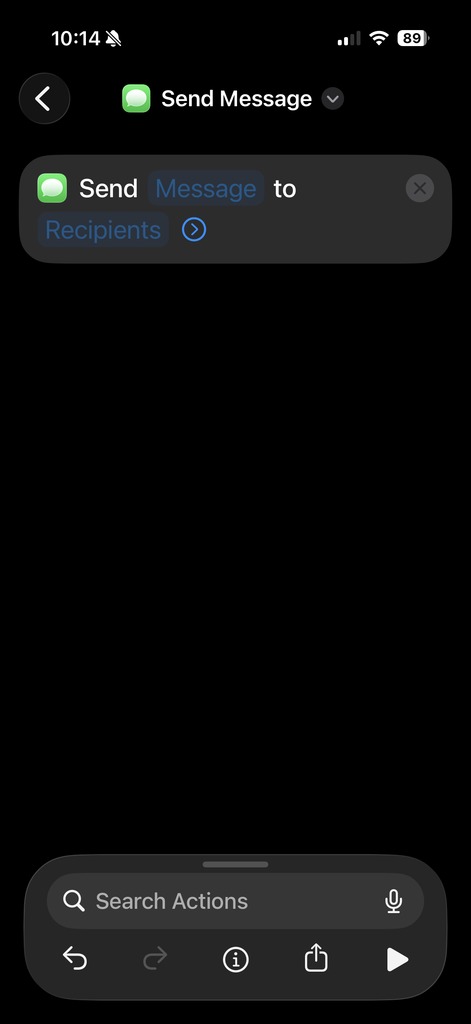
- Click Send Message. The dialog appears.
- Click Message.
- You might say, “SOS! I need help. Please call police with my current location in the next message.” Or it might say “HELP! Use Find My to locate me and send help!”
- Click Recipients to add your trusted friends or family to the recipients list.
Tip: When you’re creating your routine, send the messages to yourself to test. Once it’s perfect, add some people to EACH of the recipient fields.
IMPORTANT: Don’t forget to edit all of the recipient fields.
IMPORTANT: Call the people on your list and let them know they’re on it.
Step THREE: Send your current location
- Tap Search Actions.
- Type Location.
- Tap the icon or word Location from the list.
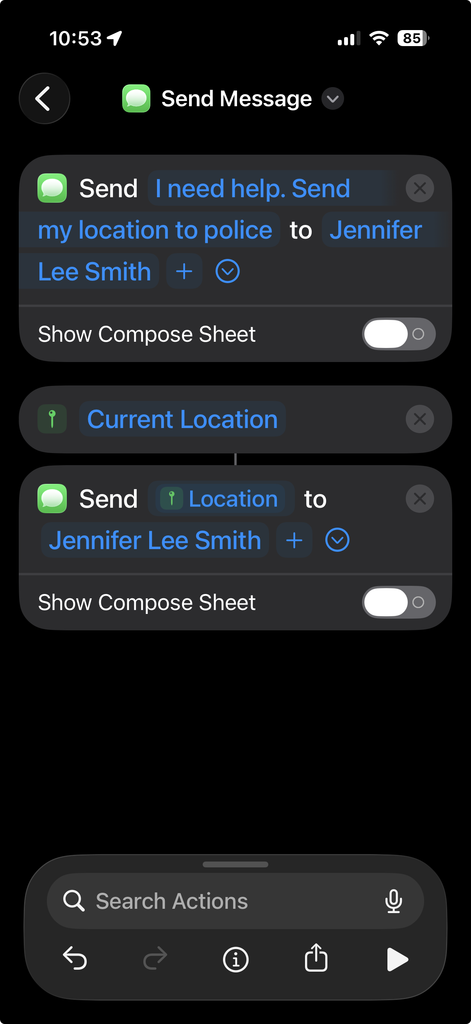
- Select Current Location and click the arrow. This action will tell your phone to get your current location.
- Click Send Message. You will see a small line connecting Current Location and Send. This means the information in the text below will include your current location.
- Click Recipients to add your friends or family.
Step THREE: Send an image taken with your back camera
- Tap Search Actions.
- Type Camera.
- Tap the icon or word Camera from the list.
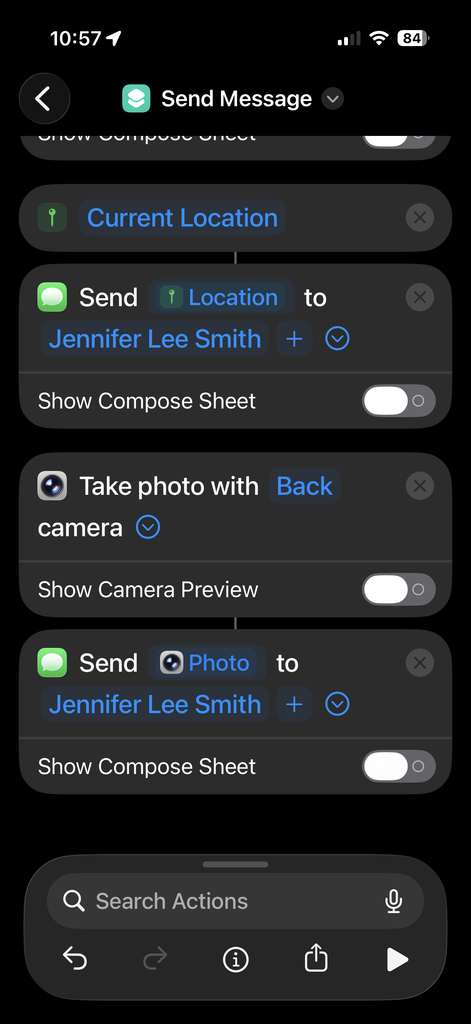
- Click Take Photo. Back will be automatically selected. If it is not, click the word to select back camera.
- Click the down arrow.
- Turn Show Compose Sheet OFF.
- Click Send Message. You will see a small line connecting Camera and Send. This means the information in the text below will include the image taken with your front camera.
- Click Recipients to add your friends or family who will receive the photograph.
IMPORTANT: Ensure that Show Compose Sheet is switched to OFF. This will make your camera take a picture without any input from you.
Step THREE: Send an image taken with your back camera
- Tap Search Actions.
- Type Camera.
- Tap the icon or word Camera from the list.
- Click Take Photo.
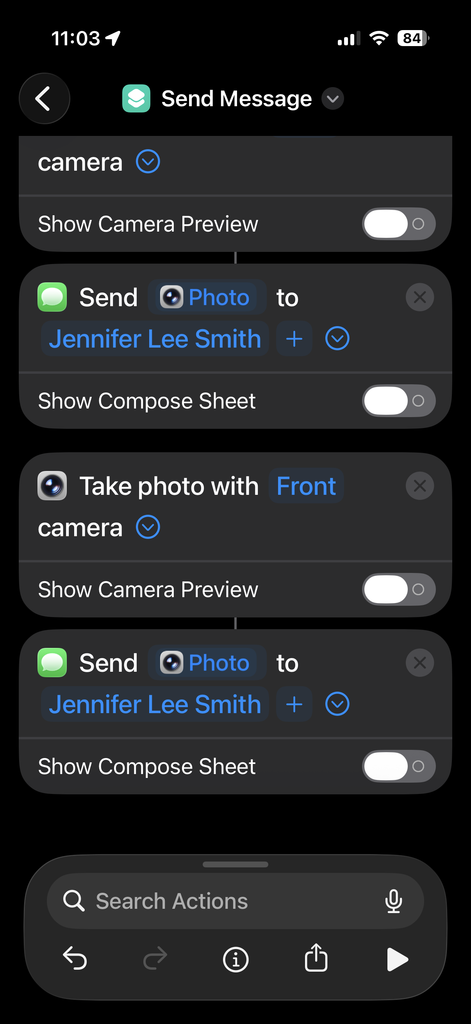
- Click Back and change the camera to Front.
- Click the down arrow.
- Turn Show Compose Sheet OFF.
- Click Send Message. You will see a small line connecting Camera and Send. This means the information in the text below will include the image taken with your front camera.
- Click Recipients to add your friends or family who will receive the photograph.
IMPORTANT: Ensure that Show Compose Sheet is switched to OFF. This will make your camera take a picture without any input from you.
Notes
- You can touch and hold an action in the list, then drag it to the position you want in the shortcut editor.
- To add another action, swipe up on the search field at the bottom of the screen, then choose an action.
Tip: When you add another action, the action category you previously chose from opens. To return to the list of all action categories, tap Done. - To test your new shortcut, tap PLAY. To stop the shortcut, tap STOP.
Finishing Up
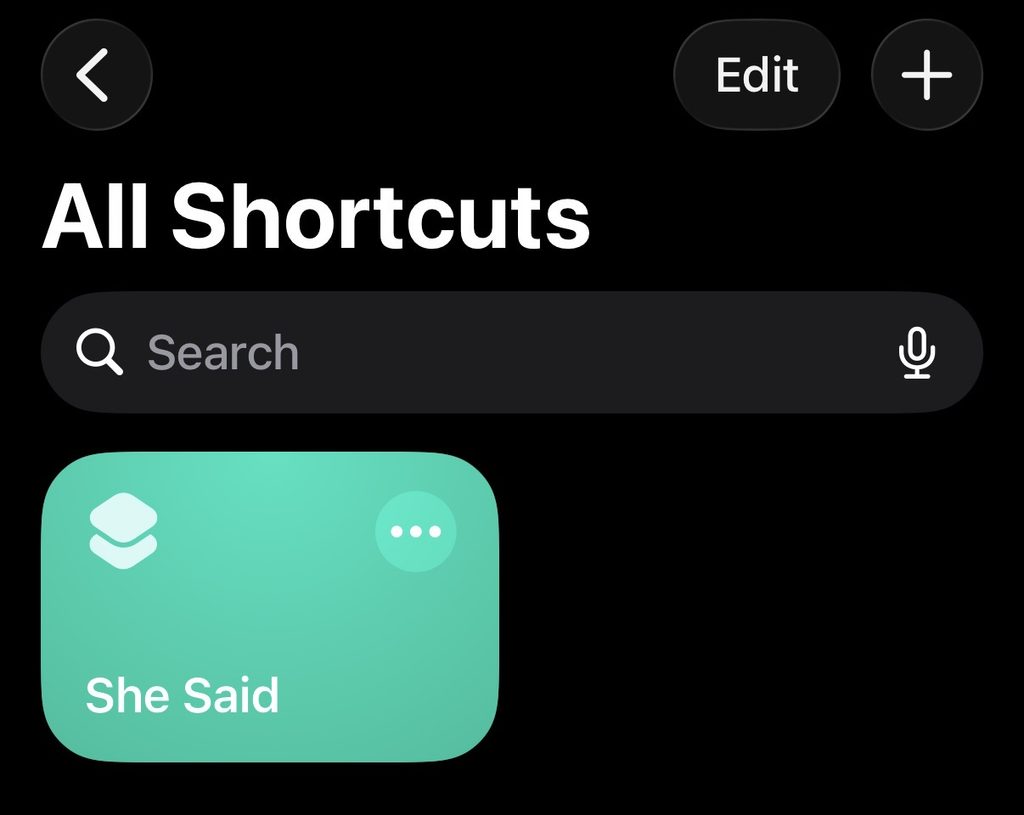
- When you’re finished adding actions to your workflow, tap Done.
- The shortcut is added to your shortcuts collection, in both the All Shortcuts and My Shortcuts categories.
- If your shortcut is named “New Shortcut”, click and hold the shortcut box to rename it.
OPTIONAL: Execute with a secret phrase
- Open the Settings app.
- Go to Accessibility and tap Vocal Shortcuts.
- Tap Set up Vocal Shortcuts or Add Action, then tap Continue.
- Choose an action or select Siri Request to run a specific command.
- Type your custom trigger phrase and repeat it out loud three times so your iPhone learns your voice. Chome something you would not say in normal conversation.
- Speak your designated phrase anytime your phone is active to run the action.
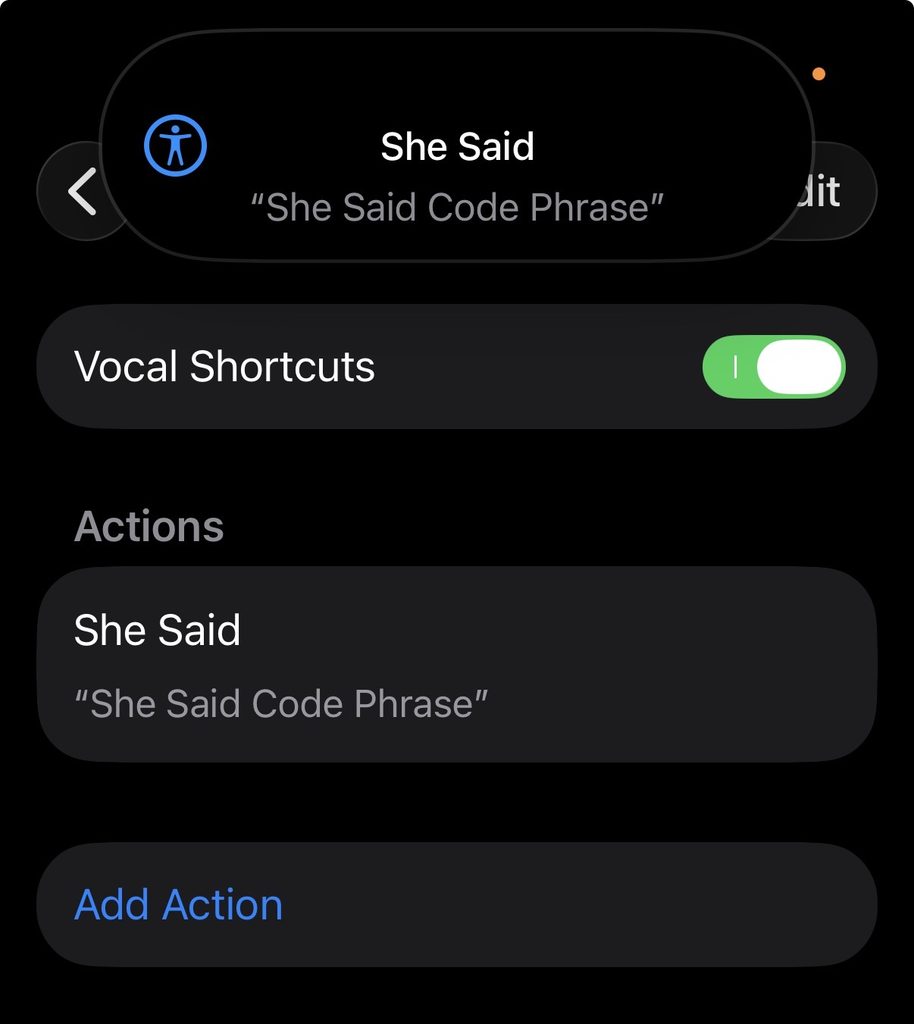
NOTE: You can run a shortcut with SIRI, but the command makes it obvious you’ve done something. Using Voice Control allows you to set a code phrase that
IMPORTANT: Voice Control does not work if your phone is asleep!